Zendesk
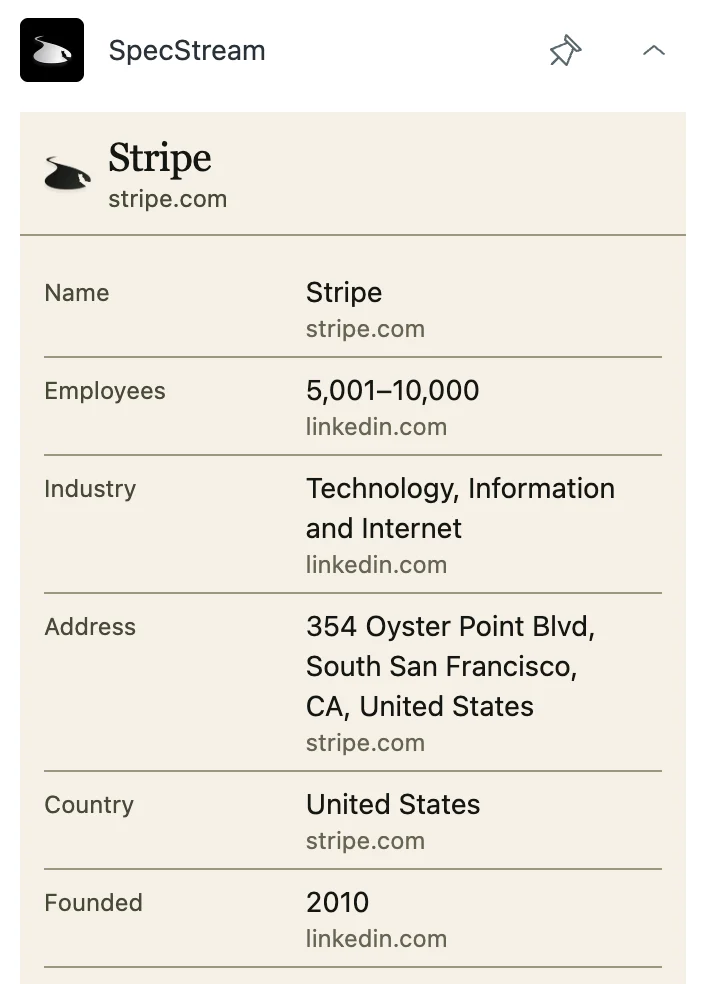
Look up the company behind a ticket on the live web without leaving Zendesk: website, employee count, industry, headquarters, year founded, LinkedIn page and latest funding round, each with the page it was read on. Save the values you want to the organization's fields.
SpecStream is in review for the Zendesk Marketplace, so the app can't be installed yet. The same company lookup runs in the SpecStream workspace now, with each value linked to its page.
Install
An admin installs the app once for the whole Zendesk account.
- Create a SpecStream API key under Agents & API (opens in a new tab) in your workspace. Starting is free: new accounts get $10 of work, no card.
- Install SpecStream from the Zendesk Marketplace Coming soon and paste the key into SpecStream API key.
- Open any ticket. SpecStream is in the apps panel on the right, and on every organization's page.
Every agent uses the same SpecStream account, and lookups are paid from its balance. Zendesk keeps the key as a secure setting: agents never see it, and Zendesk adds it only to requests to api.specstream.ai.
Look up a company
SpecStream takes the company from the ticket's organization, or from the requester's email domain, and writes the request for you. You can change it to ask for anything else, for example:
1 company whose website is acme.com, with its head of customer support and their LinkedIn profile
When the requester writes from a personal address such as Gmail, there's no company to start from, so type the company you want. Click Get the price.
Approve the price
The app shows how SpecStream read the request and the most it can cost. Click Find for at most the price to start. Nothing runs before you approve, and if the price changed in the meantime, the app asks you to get the new one.
Results take a few minutes. You can leave the ticket; the lookup keeps going, and its results show when you open the ticket again in the same browser. Every lookup is also saved as a list in your SpecStream workspace.
Read the results
Each value shows with the website it was read on. Click the website to open the page, or hover a value to copy it. Open in SpecStream opens the list in your workspace, with the reason each record matched.
Save to the organization
When the ticket has an organization, the app matches the record's values to the organization's text and number fields by name: Website, Employees, Industry, Funding, Founded, Country, Headquarters and LinkedIn, and similar names. Tick the fields to fill and click Save. Add the fields in Admin Center under People > Configuration > Organization fields. Saving needs a role that can edit organizations.
Permissions and data
The app reads the ticket's organization and requester, and the organization fields Zendesk defines. It writes only the organization fields you tick, as the agent who saves them. It doesn't read ticket comments or attachments.
Each request to SpecStream contains only what you asked for. See the privacy policy and security.
How SpecStream uses AI
SpecStream uses AI models to read your request and the pages it collects, so results can be wrong. Every value carries the page it came from, so you can open the source before you rely on it. The AI services SpecStream uses don't keep what they read and may not train their models on it.
Cost
The app is free. Lookups are paid from your SpecStream balance, only for the results that match, and a lookup that finds nothing is free. The default company profile is 30¢. See pricing and balance, quotes and billing.
Remove the app
In Admin Center, open Apps and integrations > Zendesk Support apps, and uninstall SpecStream. To stop the key working everywhere, delete it under Agents & API (opens in a new tab). Values saved to organizations stay. The other tools SpecStream works with are in Connect your tools. For help, email [email protected].