Copper
Put live web data in Copper: the roofers rated 4.5 or better in your territory, the clinics that opened this year, the companies hiring their first salespeople. Each one arrives as a company with its fields filled, tagged as a batch, and a note on why it matches, every reason linked to the page it came from.
What you need
- A SpecStream account. Starting is free: new accounts get $10 of work, no card.
- A Copper account, your Copper API key and the email you sign in to Copper with.
- Results from a finished request. An imported file needs its matches found first.
- 1
1. Connect Copper
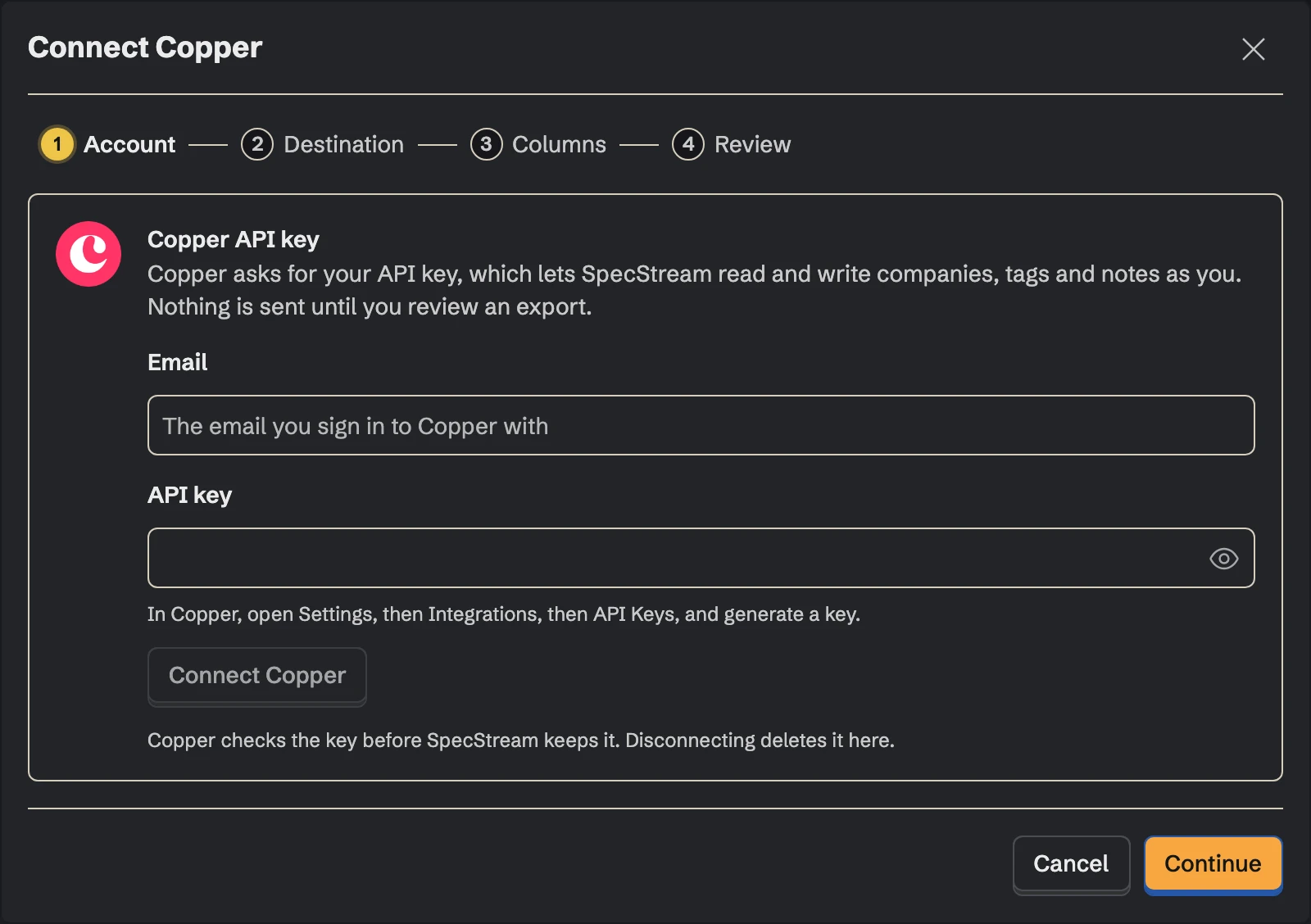
In Copper, open Settings, then Integrations, then API Keys, and generate a key.
In SpecStream, open Connections and choose Copper. Enter the email you sign in to Copper with, paste the key and click Connect Copper.
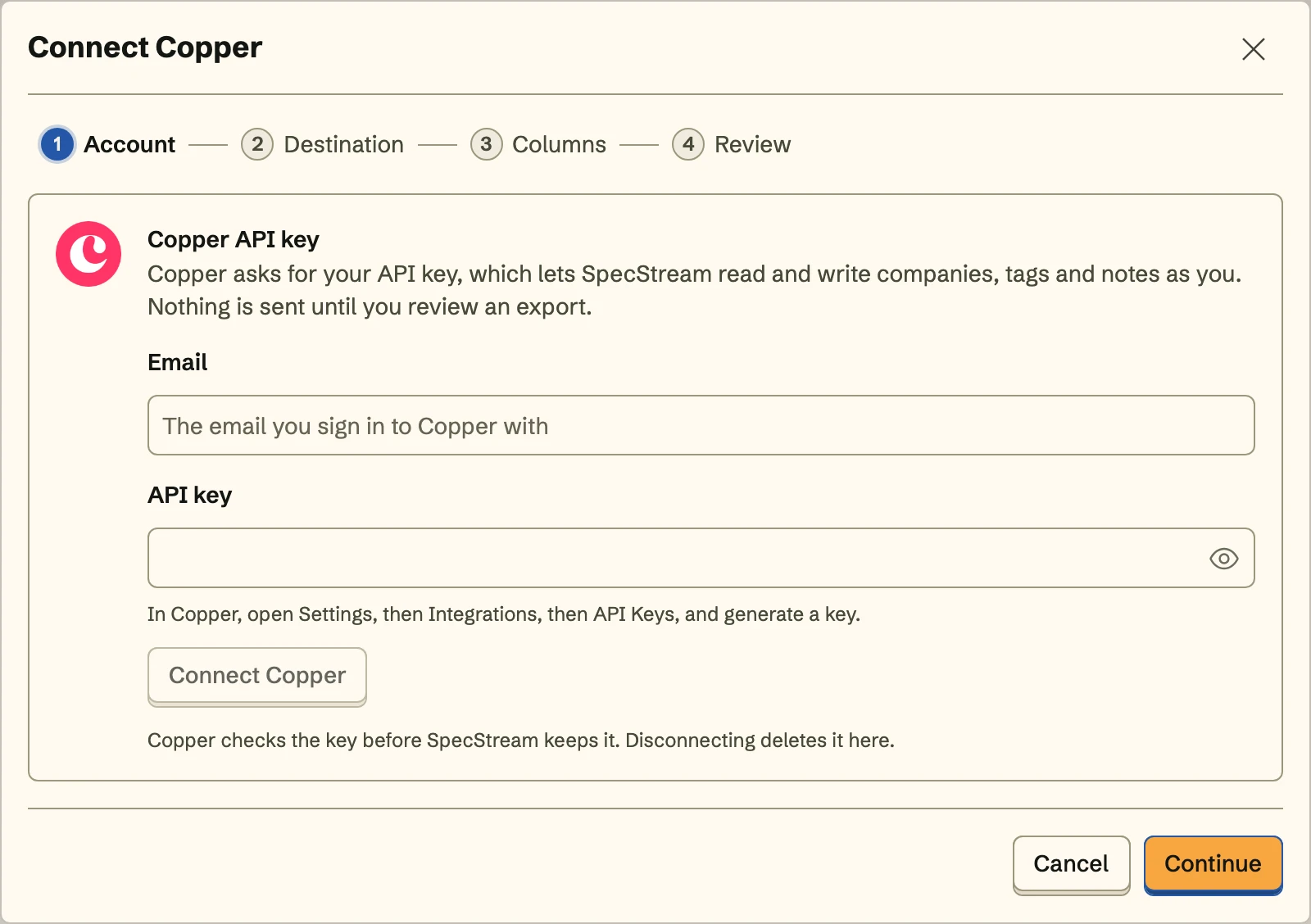 Copper checks the key and the email before SpecStream keeps them.
A Copper key acts as you, so SpecStream can do what you can. It only reads your tags and custom fields, looks up companies by domain, creates and updates companies and keeps one note on each. It doesn't read or write people, leads, opportunities, tasks or anyone's email. The key is stored encrypted and never shown again.
- 2
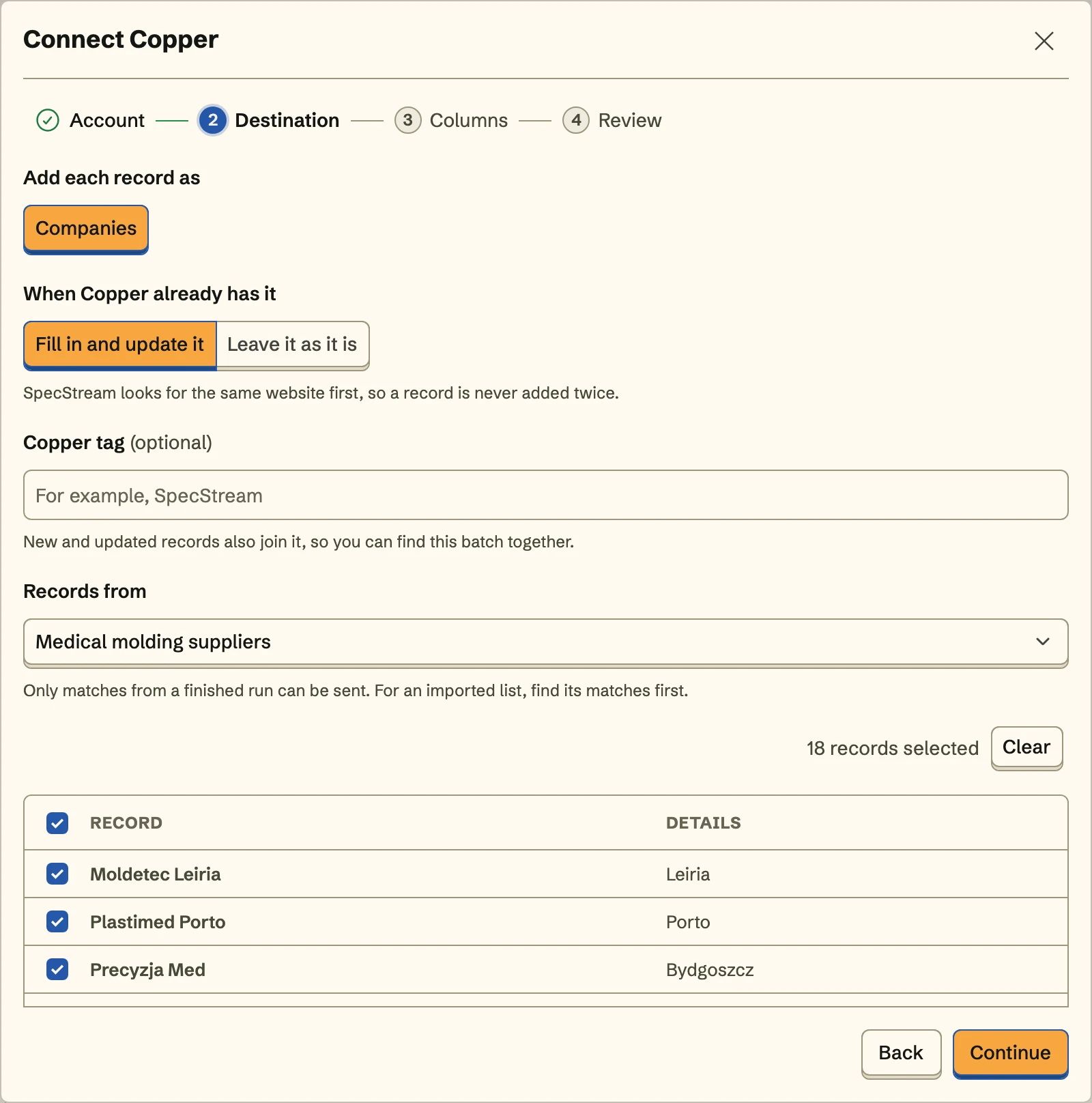
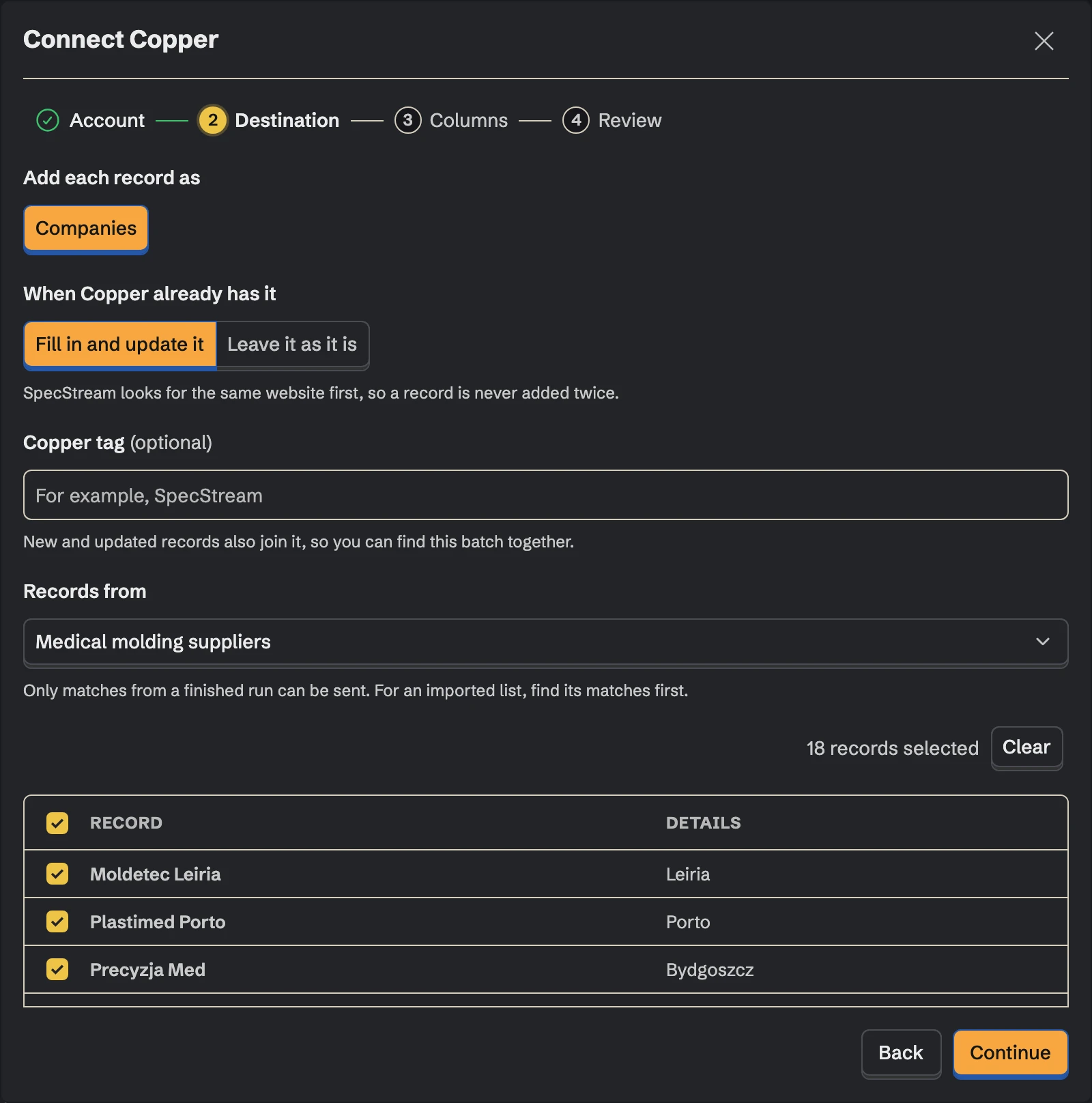
2. Choose where records go
Decide what happens when Copper already has a company: fill it in and update it, or leave it as it is. Pick a tag, one of yours or specstream, and every company in the batch carries it, so this week's results are one filter away. Then pick the collection the records come from and select the ones to send.
- 3
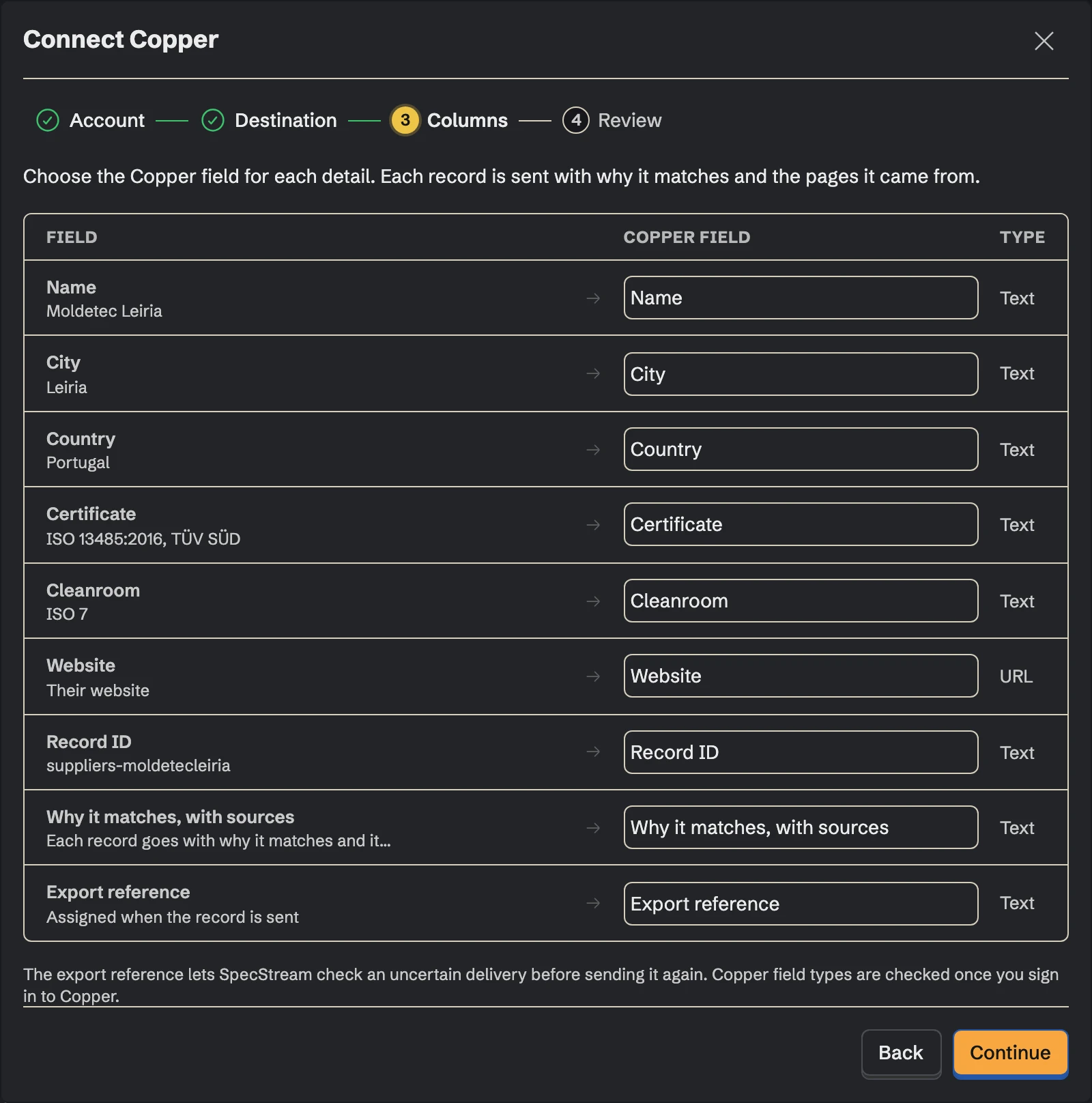
3. Match the fields
Choose the Copper field for each detail, by the names your team gave them: what a company does to the description, the phone number and address to Copper's own fields, headcount or the funding round to custom fields you made for them. Fields you don't map aren't sent.
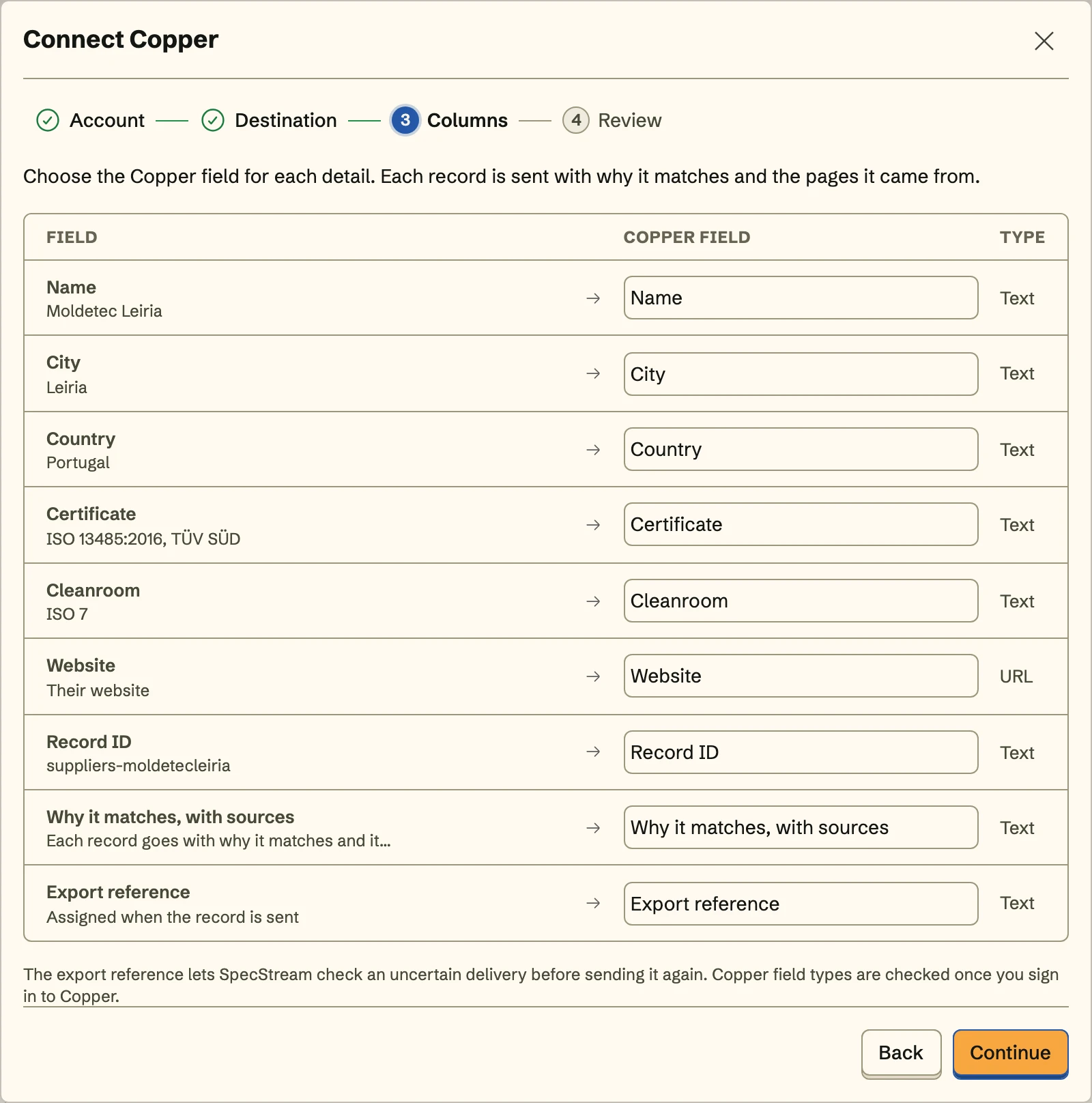
Every company needs a website or a domain. That's how Copper and SpecStream know it's the same company.
- 4
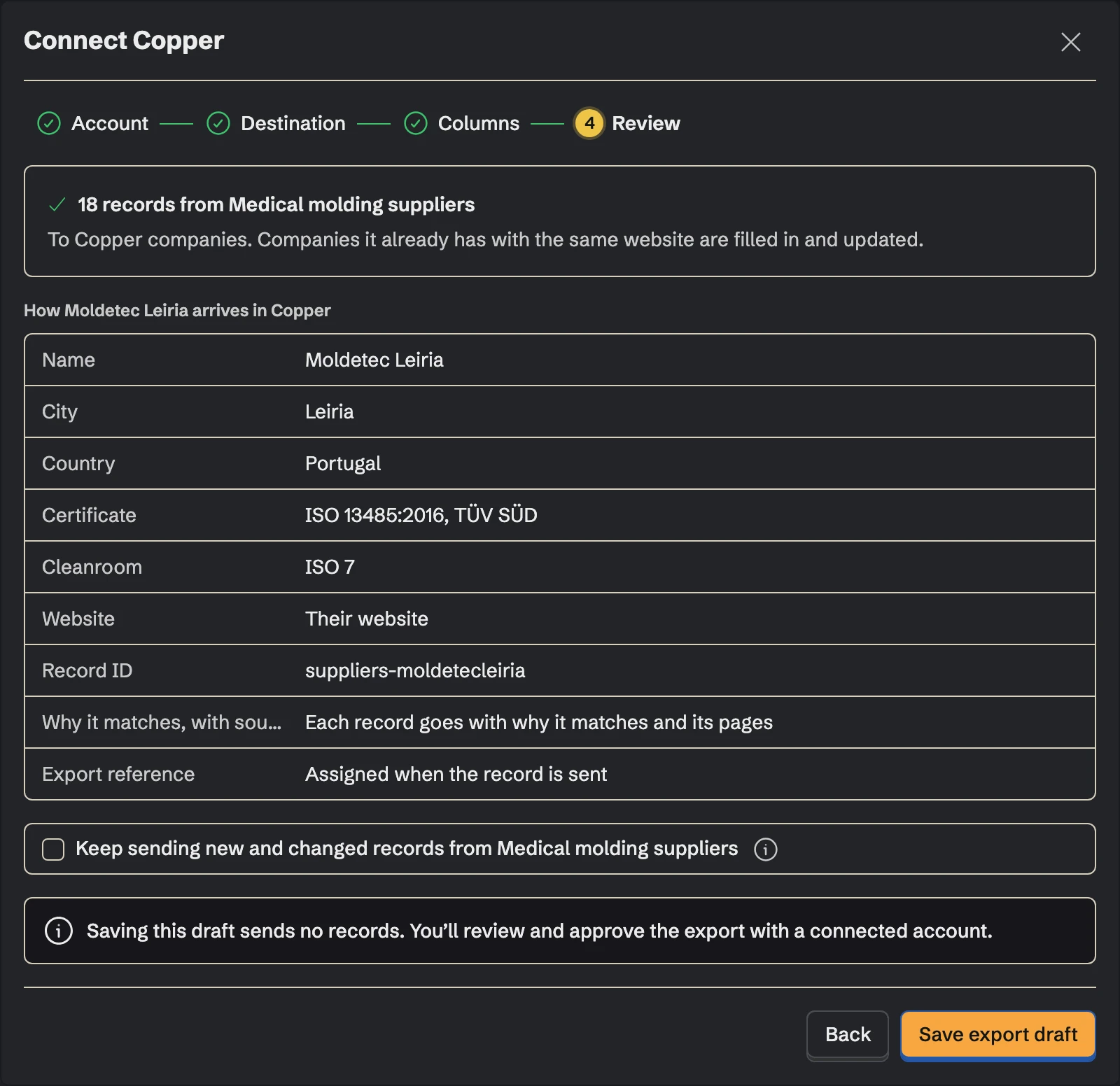
4. Review and send
Review shows exactly how the first company arrives in Copper. Send the records, and turn on Keep sending to send the collection's new and changed records with the same tag and mapping, including what a monitor finds on its schedule.
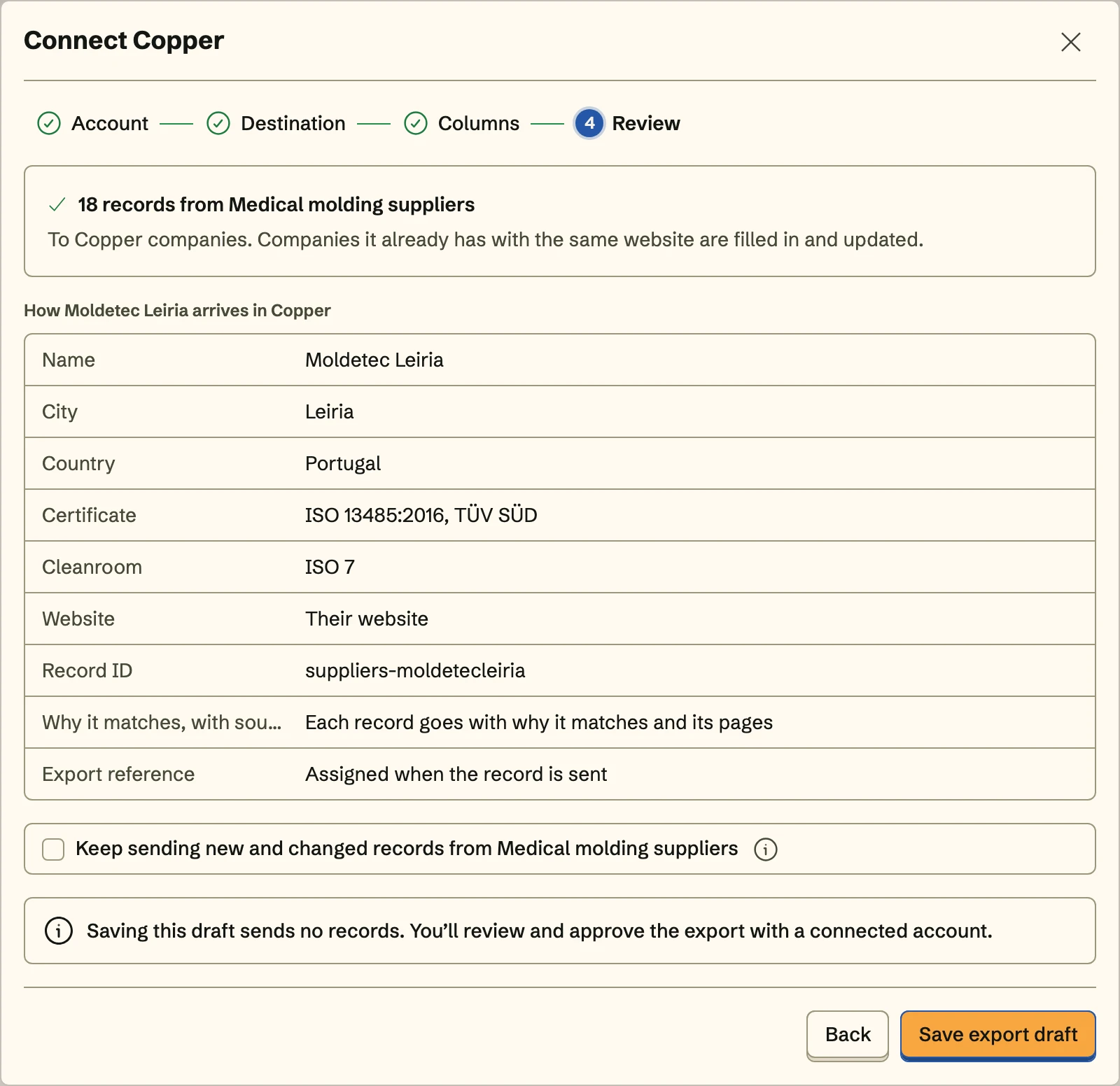
Once Copper is connected, send from any collection too: select results, open Export and choose Copper under Send to.
Matching
Before it creates anything, SpecStream searches Copper by the company's email domain and compares each hit's domain and websites. A match is updated or left alone, as you chose, and only the values that differ are written: tags you added stay, and an address keeps the parts SpecStream didn't send. If two companies in Copper share the domain, nothing is written for it. Why it matches lives in one note headed Why it matches, from SpecStream, and a resend rewrites that note instead of adding another. If a write times out, SpecStream checks what arrived instead of writing it again.
SpecStream never adds people or leads, emails anyone, or creates an opportunity.
Cost
Sending results to Copper costs nothing. Requests are paid from your SpecStream balance, only for the results that match, and each one shows the most it can cost before it starts. See balance, quotes and billing.
Disconnect
Disconnect from Connections in SpecStream, which deletes the stored key. To retire the key in Copper as well, delete it under API Keys. Companies, tags and notes already in Copper stay there. The other tools SpecStream connects to are in Connect your tools; for help, email [email protected].