Freshsales
Send live web data to Freshsales as accounts or contacts. Every record arrives with why it matches and the pages it came from, and SpecStream looks for the same account or email in Freshsales before it adds anything.
What you need
- A SpecStream account. Starting is free.
- A Freshsales or Freshsales Suite account whose user can create accounts and contacts, and that user's API key.
- Results from a finished request. An imported file needs its matches found first.
- 1
1. Connect Freshsales
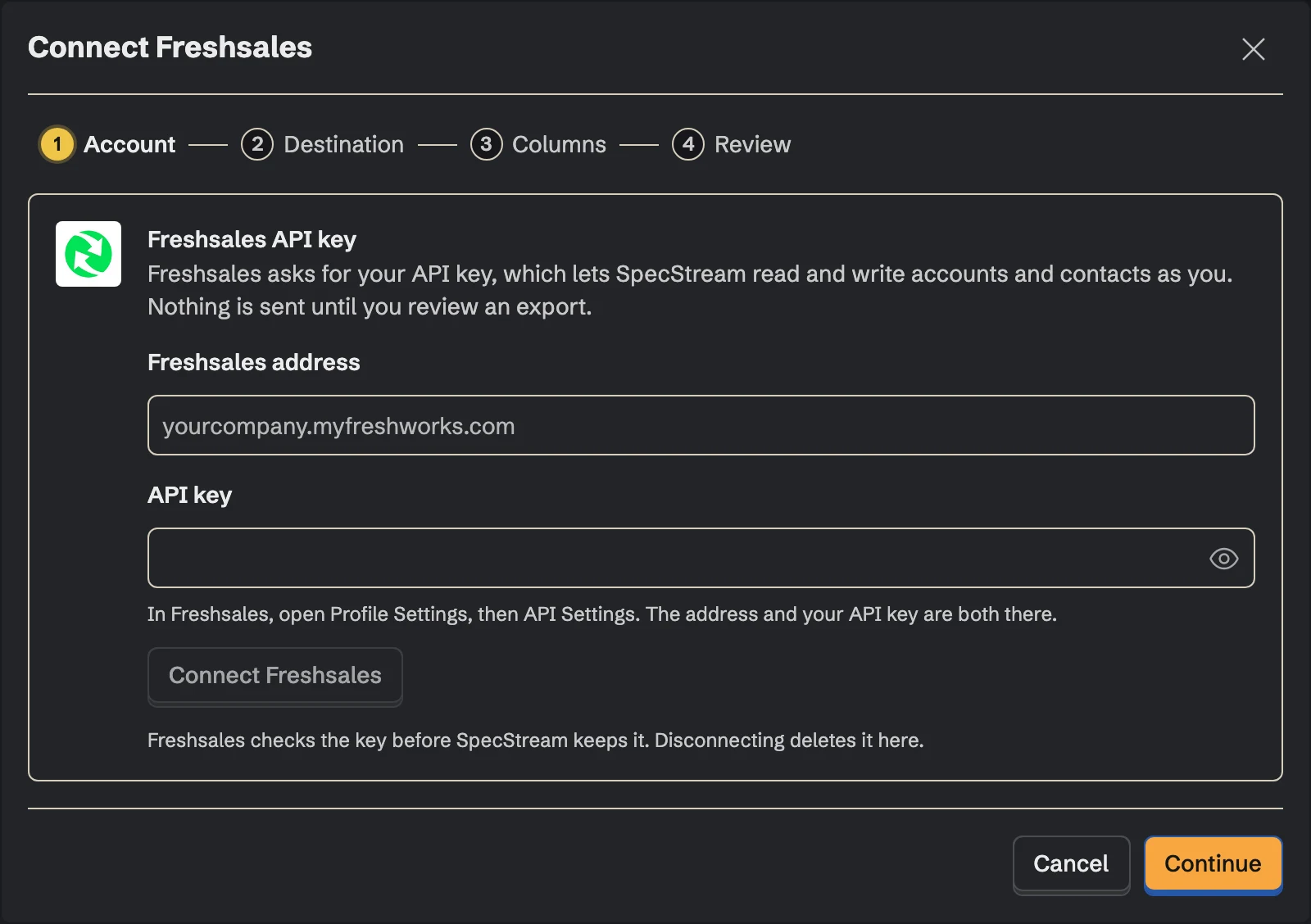
In Freshsales, open Profile Settings, then API Settings. Copy your API key and the address shown there, like
yourcompany.myfreshworks.com.In SpecStream, open Connections and choose Freshsales, or install SpecStream from the Freshworks Marketplace. Paste the address and the key, then click Connect Freshsales.
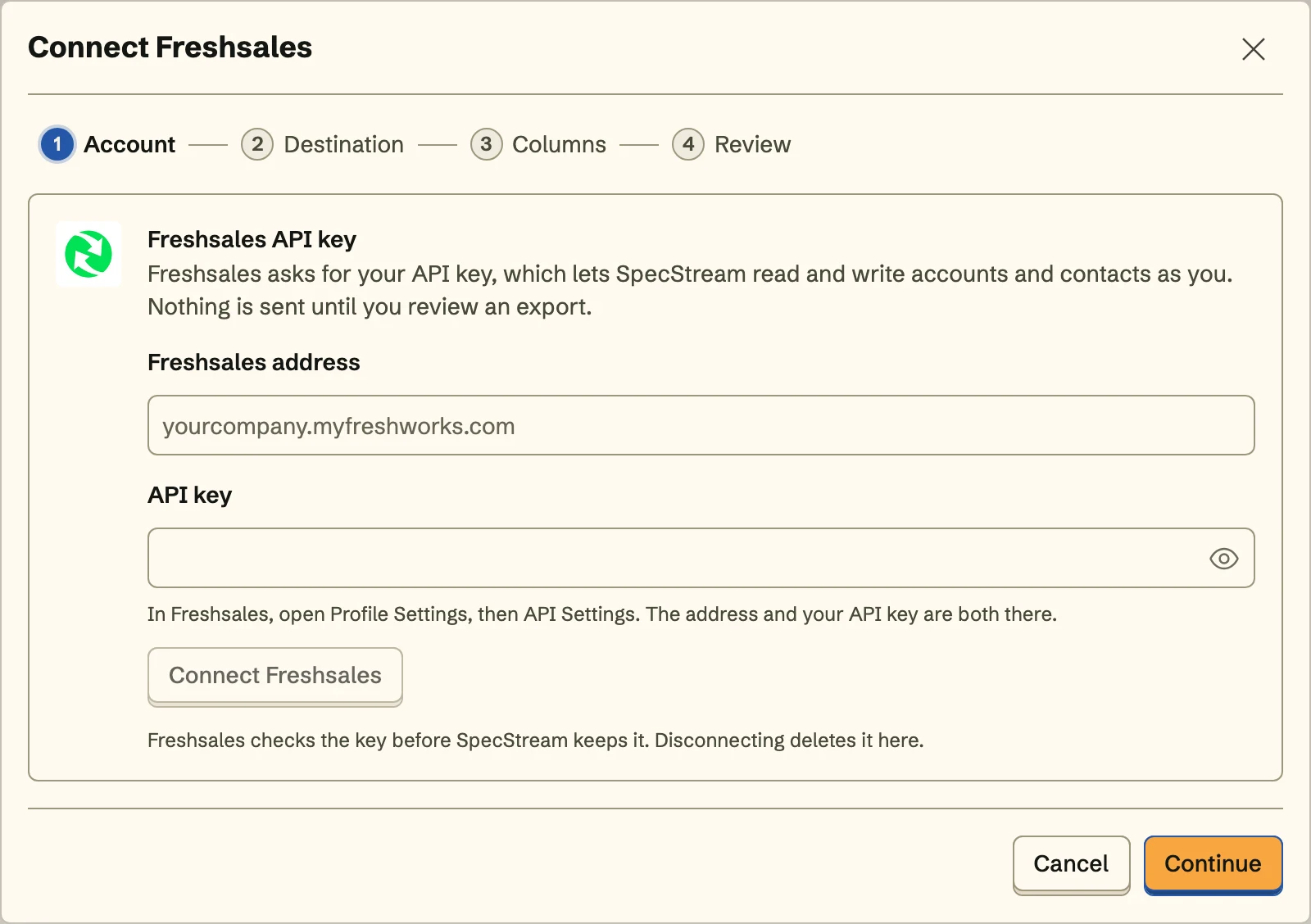 Freshsales checks the key before SpecStream keeps it.
The key lets SpecStream act as you in Freshsales, so it can do what you can. SpecStream only looks up accounts and contacts, creates and updates them, reads your fields and lists, and adds contacts to the list you pick. It doesn't read or write deals, tasks, notes, emails or sales sequences. The key is stored encrypted and never shown again.
- 2
2. Choose where records go
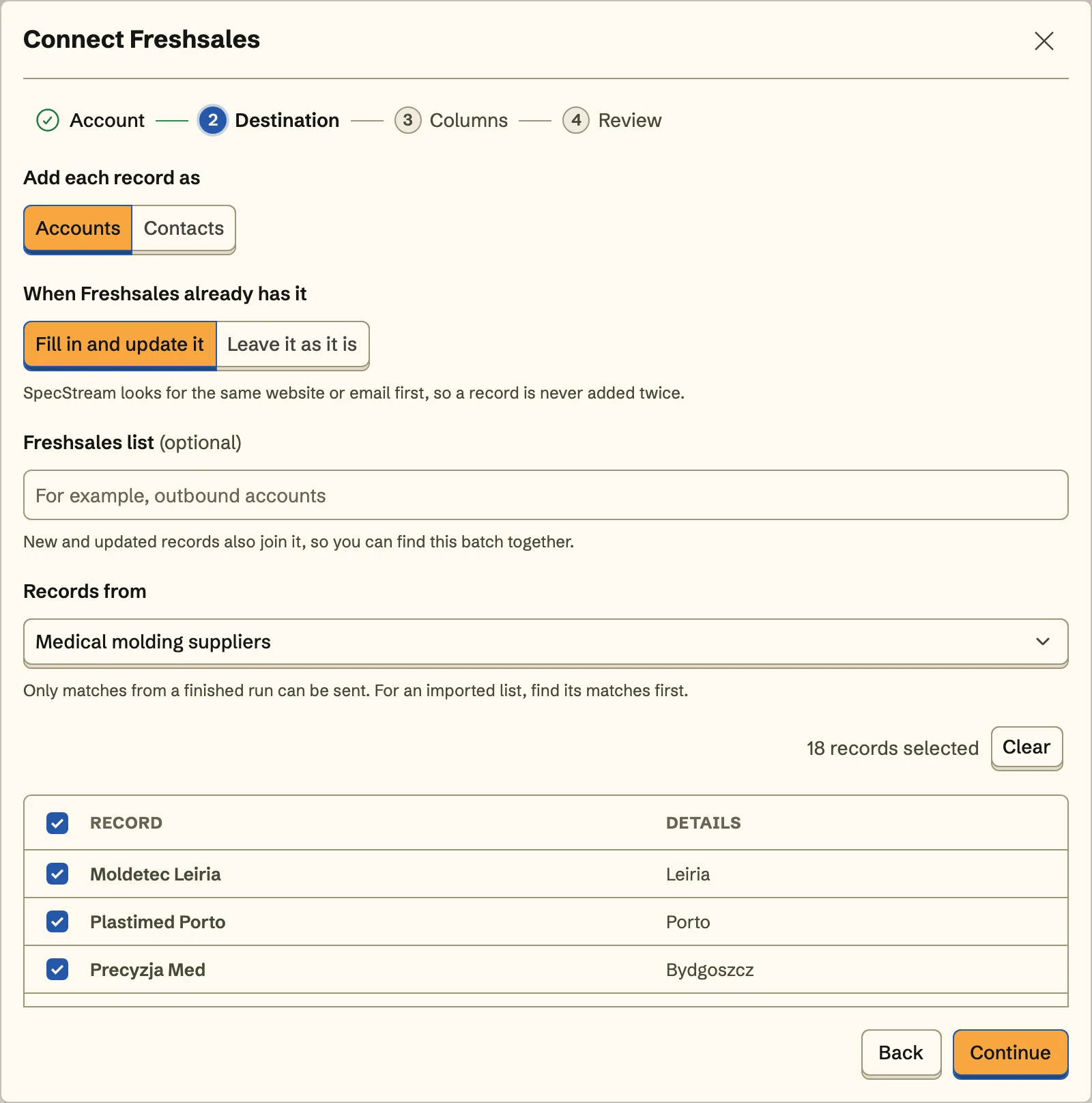
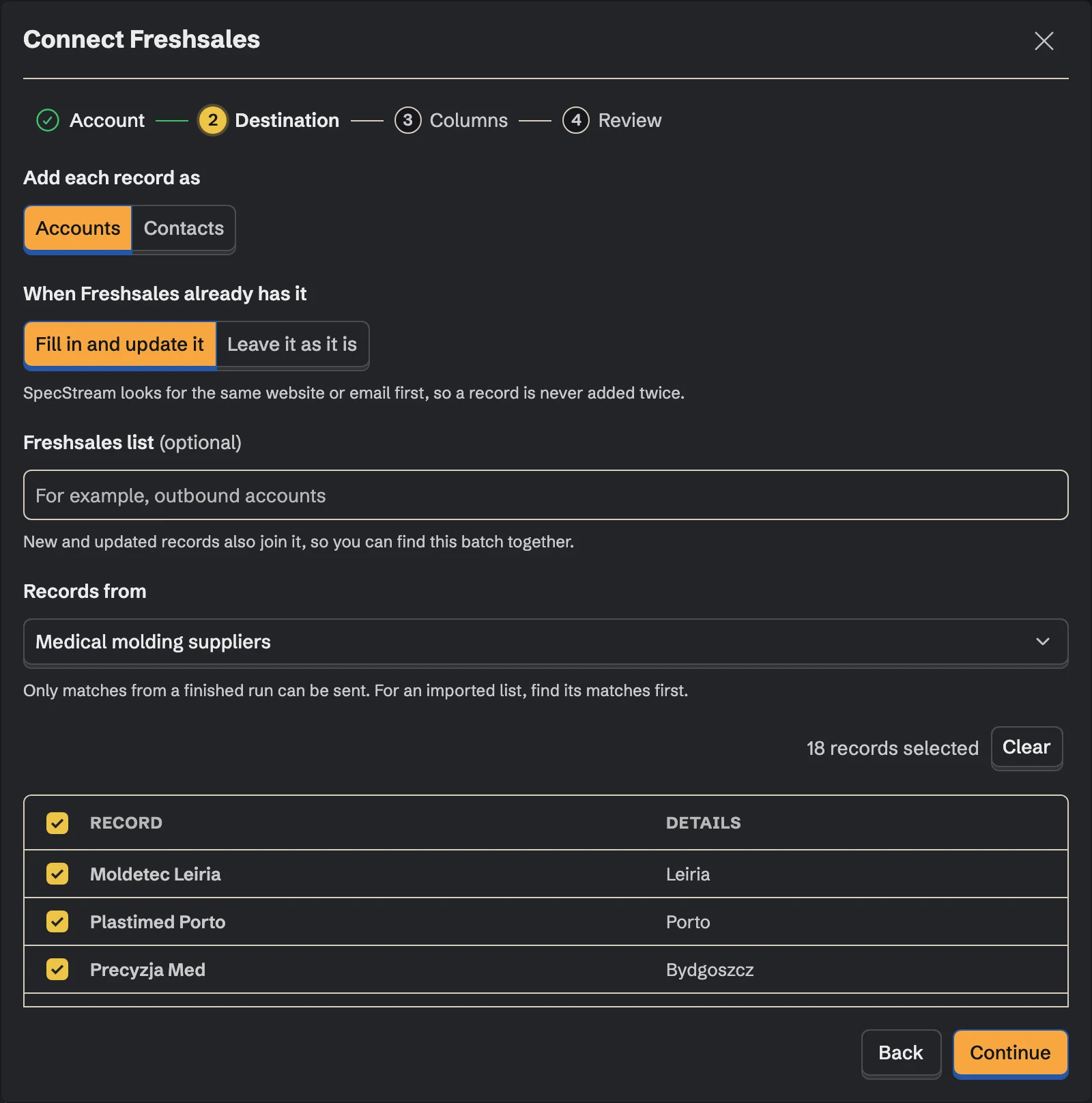
Add each record as an account or a contact, and decide what happens when Freshsales already has it: fill it in and update it, or leave it as it is. For contacts, a list is optional; every contact in the batch joins it, so this week's results are easy to find. Then pick the collection the records come from and select the ones to send.
- 3
3. Match the fields
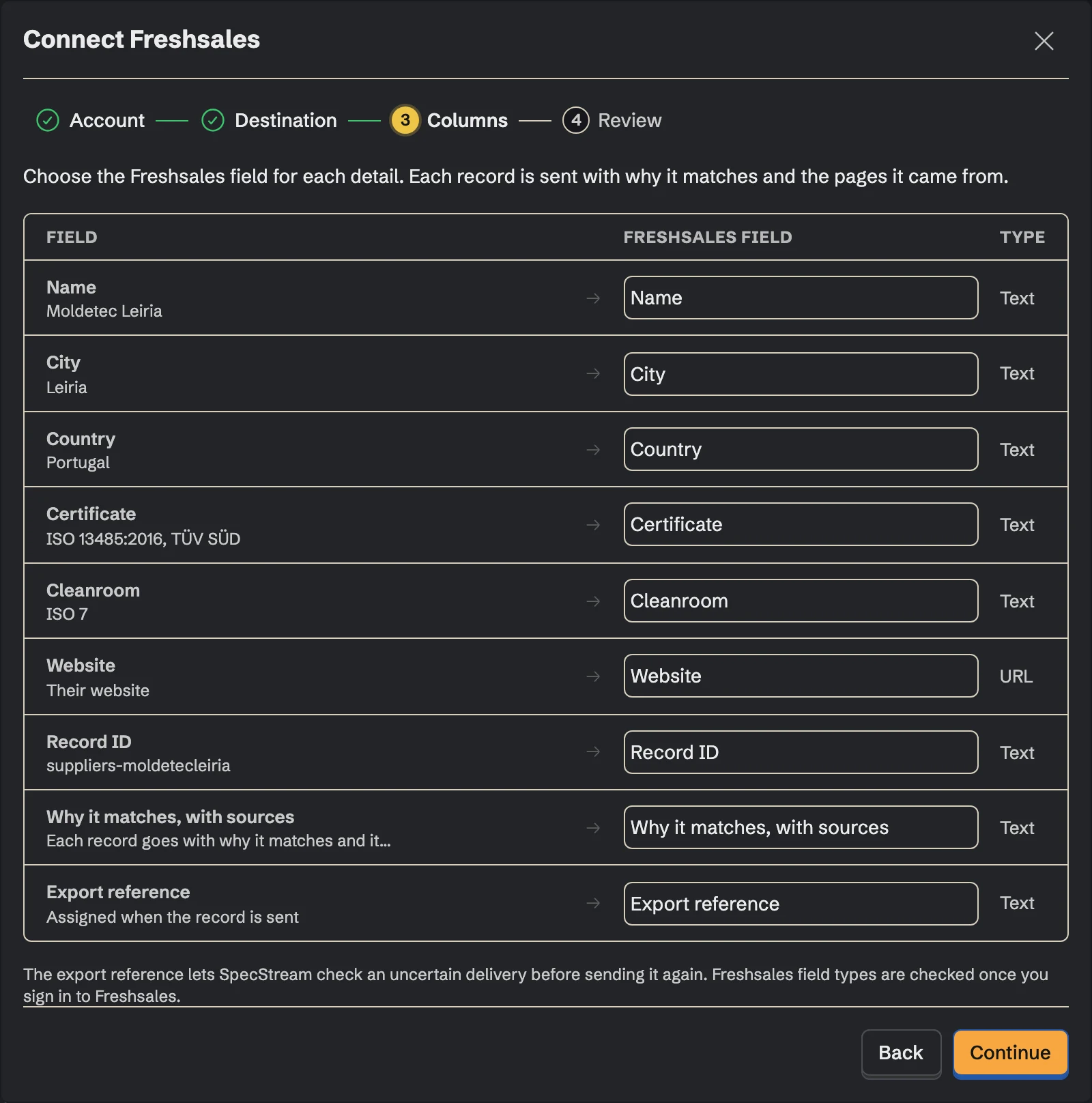
Choose the Freshsales field for each detail, in Freshsales' own names, custom fields included: a job title to
job_title, a phone number towork_number, the page a contact came from to a custom field you made for it. Fields you don't map aren't sent. Each record can also carry why it matches and the pages it came from.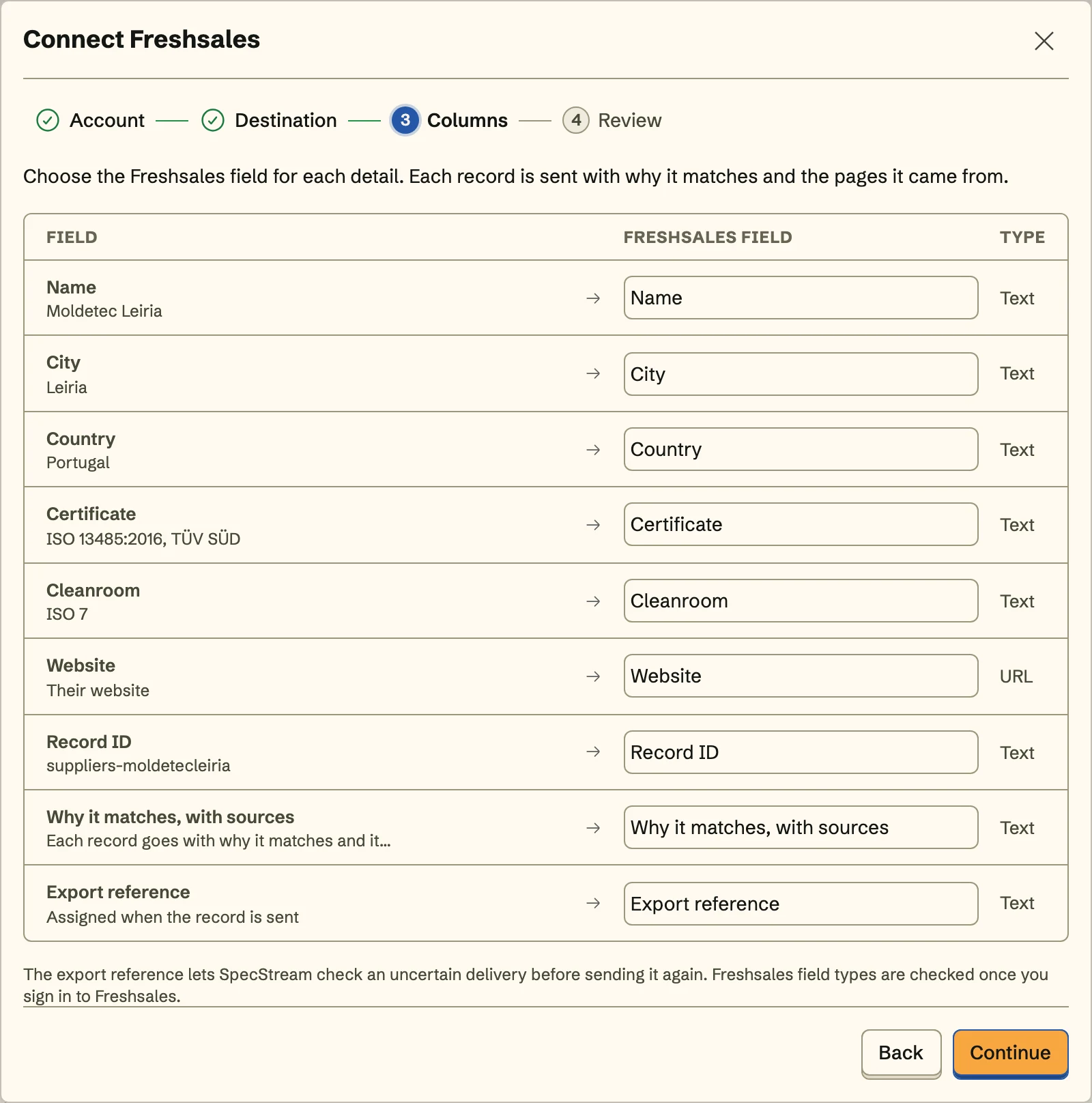
An account needs a website or domain. A contact needs an email address the source published; SpecStream never guesses one.
- 4
4. Review and send
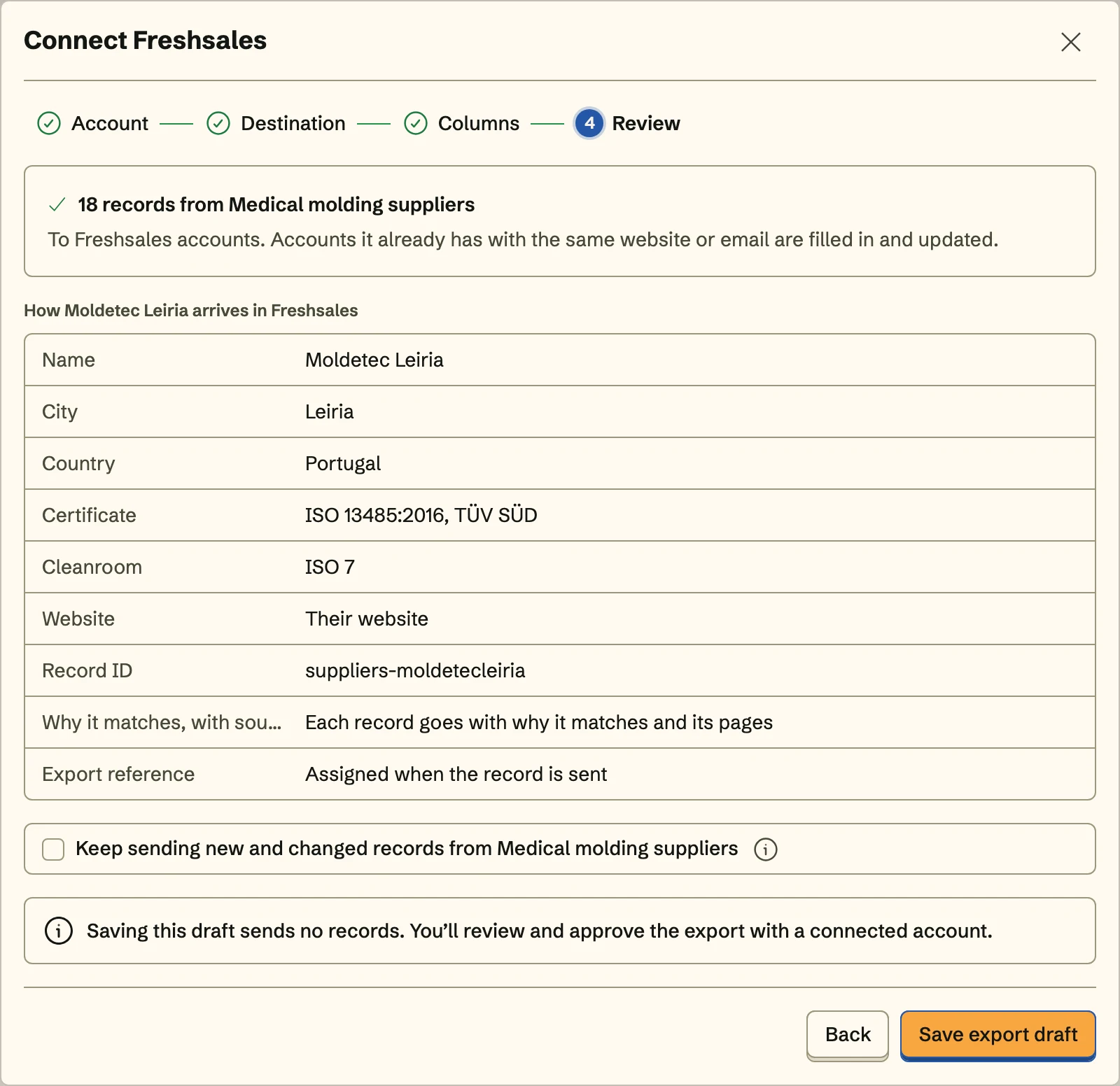
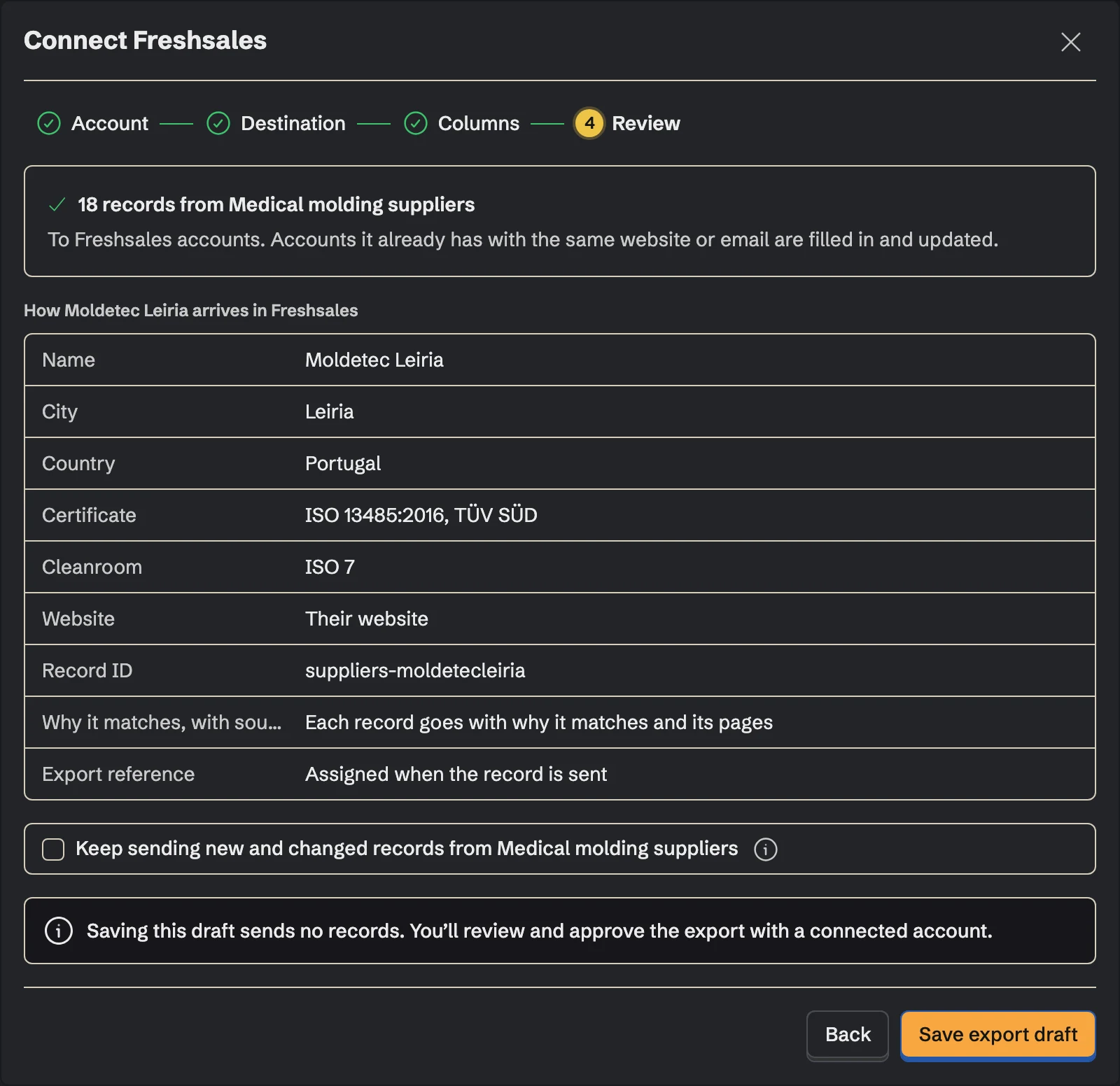
Review shows exactly how the first record arrives in Freshsales. Send the records, and turn on Keep sending to send the collection's new and changed records to the same place with the same mapping, including what a monitor finds on its schedule.
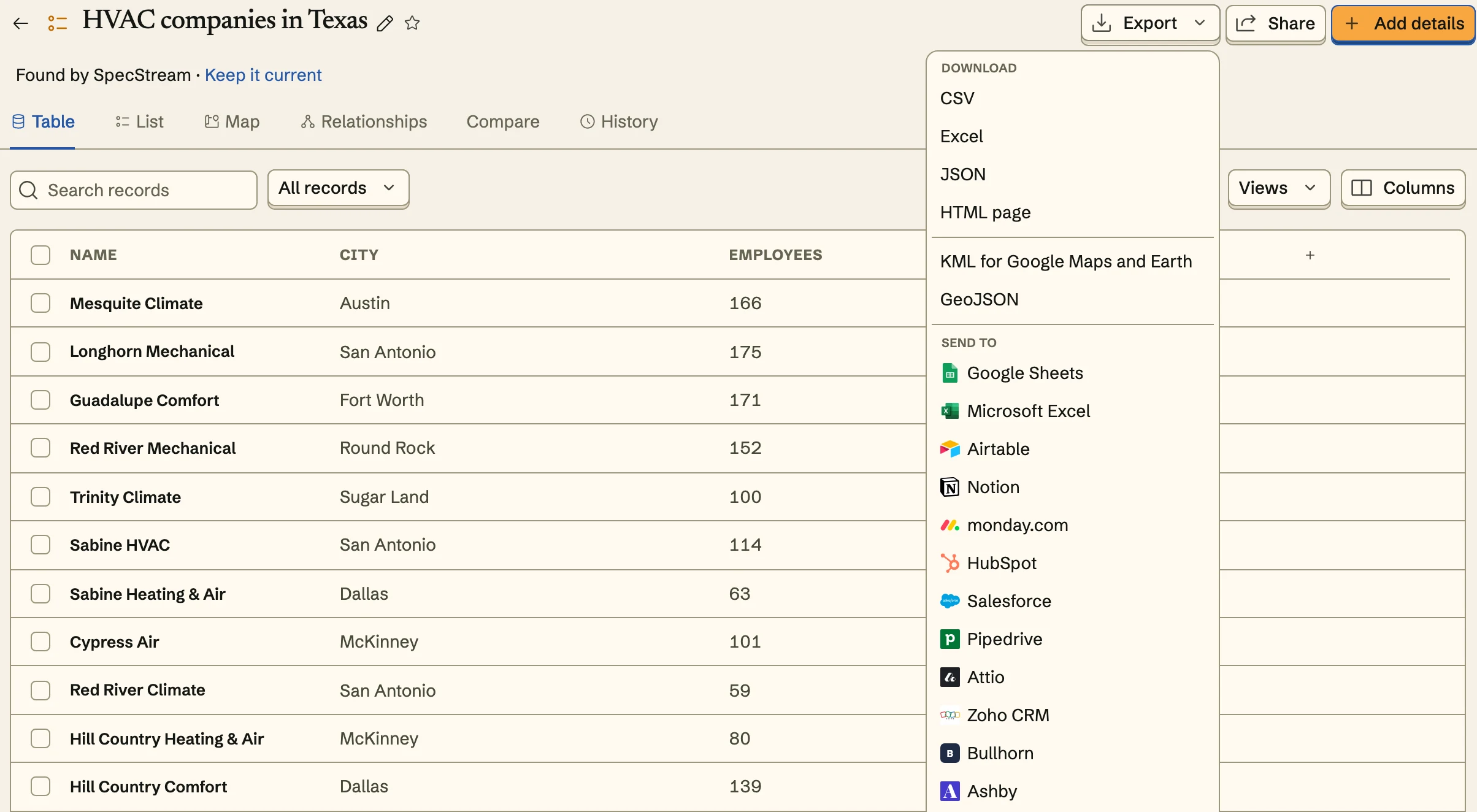
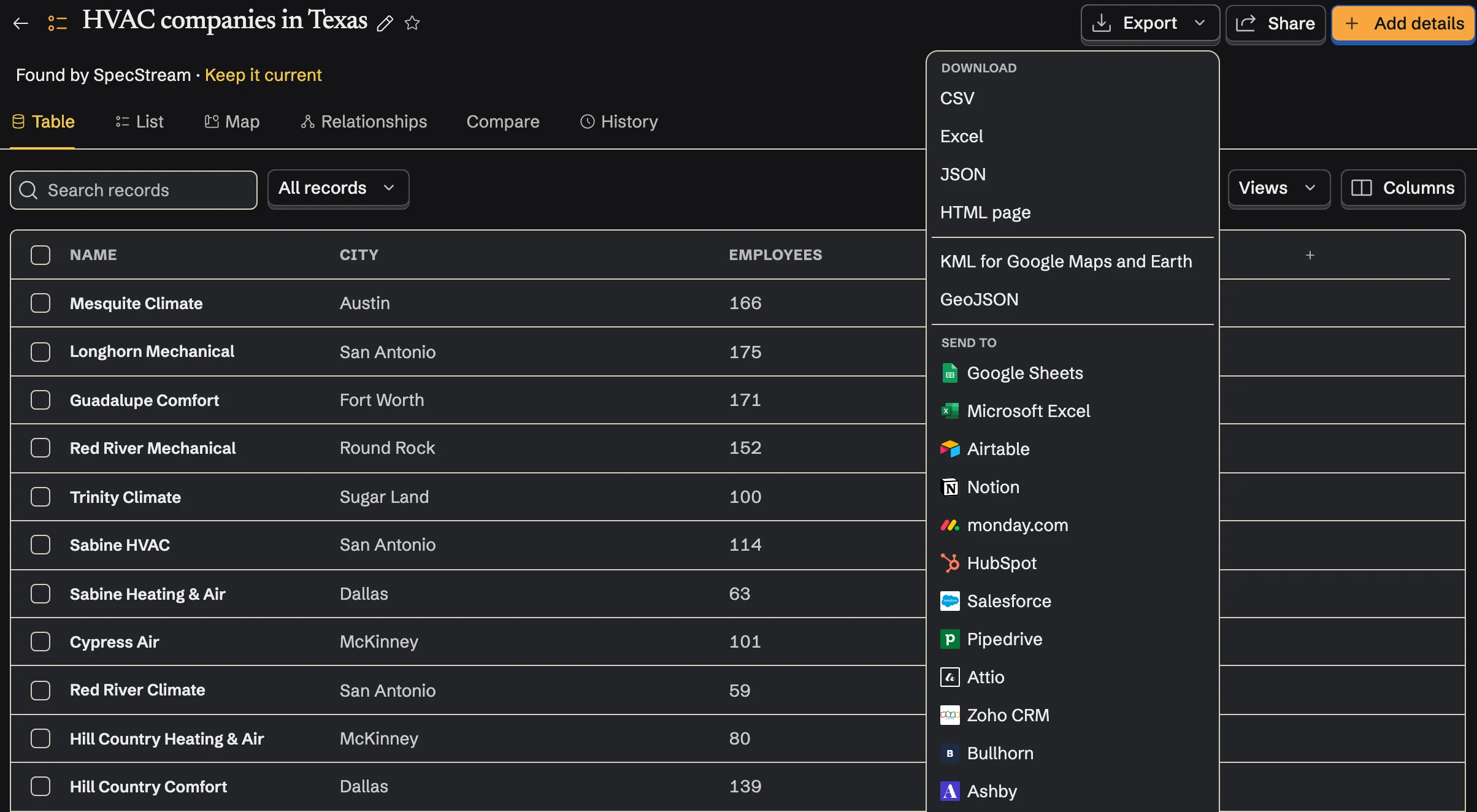
Once Freshsales is connected, send from any collection too: select results, open Export and choose Freshsales under Send to.
Matching
Before it creates anything, SpecStream searches Freshsales: accounts by name and website, contacts by email address. A match is updated or left alone, as you chose. An account with the same name but another website stops the write, since Freshsales keeps one account per name and the two are different companies. If a result matches more than one record, nothing is written for it. If a write times out, SpecStream checks what arrived instead of writing it again.
SpecStream never adds anyone to a sales sequence, sends an email or creates a deal.
Cost
Sending results to Freshsales costs nothing. Requests are paid from your SpecStream balance, and each one shows the most it can cost before it starts. See balance, quotes and billing.
Disconnect
Disconnect from Connections in SpecStream, which deletes the stored key. To retire the key in Freshsales as well, reset it under API Settings. Records already in Freshsales stay there. The other tools SpecStream connects to are in Connect your tools; for help, email [email protected].