Airtable
Send live web data to a table in your Airtable base. Each match is a record with a field for every detail and a field for the pages it came from, and the table keeps growing as the list finds new matches.
What you need
- A SpecStream account. Starting is free.
- An Airtable account that can edit the table.
- Results from a finished request. An imported file needs its matches found first.
- 1
1. Connect Airtable
Open Connections in SpecStream, choose Airtable and click Sign in to Airtable. On Airtable's sign-in screen, tick the bases SpecStream may use.
Nothing is sent until you review an export. - 2
2. Choose the table
Pick the Airtable base and the Table in it. Then pick the collection the records come from and select the ones to send.
- 3
3. Match the fields
Choose the Airtable field for each detail. Airtable receives every detail, the sources and the Record ID included, each into a single line text, long text or rich text field you choose. Give the export reference a field too: it keeps each record to one row when you send again.
A business keeps one Record ID across your lists, so searching that field finds it again whichever request brought it in.
- 4
4. Review and send
Review shows how the first record arrives in Airtable. Send the records, and turn on Keep sending for what the list finds next.
Once Airtable is connected, send from any collection too: select results, open Export and choose Airtable under Send to.
Bring a table in
To start from a table you already have, import it: choose Airtable under From and paste the Table or view link. SpecStream reads the table, or only the view you link to, up to 20,000 rows. Tick Keep this list up to date with Airtable and SpecStream reads it again every day for new and changed records. Your notes, views and results stay as they are.
The Airtable extension Coming soon
The extension is in review. Until it opens, send results to a table from Connections, as above.
The extension runs inside a base. It shows how SpecStream read the request and the most it can cost, runs it once you approve, and adds the results to a table, each record with the page it was read from.
Install the extension
- In a base, open Extensions and click Add an extension.
- Search for SpecStream and click Add extension.
Adding extensions and creating tables or fields needs creator permission in the base.
Connect SpecStream
- In your SpecStream workspace, open Agents & API (opens in a new tab) and create an API key. New accounts get $10 of work, no card.
- In the extension, click the settings button, paste the key and click Save and check.
Airtable keeps extension settings with the base, so everyone who can open the extension in this base uses the same key and spends from the same SpecStream account. Use a key you're happy to share with the base's collaborators.
Ask for data
Under What do you want to find?, say what you want and the details to bring back, set how many Results, and click Get the price. For example:
Coffee shops in Austin with their website and Google rating
Approve the price
The extension shows how SpecStream read the request: what it's looking for and what it brings back. Below that is the most it can cost. Set Your maximum (USD) and click Approve up to the price. The run starts only if the price is at or below your maximum, and the extension remembers the maximum for next time.
Results take a few minutes. You can close the extension while it reads the live web; the run keeps going, and the extension picks it back up when you open it again. Stop the run ends it, and you pay only for the results it already found.
Add the records
When the results are ready, choose A new table or A table in this base. The extension lists the fields it fills; fields it creates in an existing table say (new). A field with the same name and a compatible type is reused. Click Add to write the records, 50 at a time.
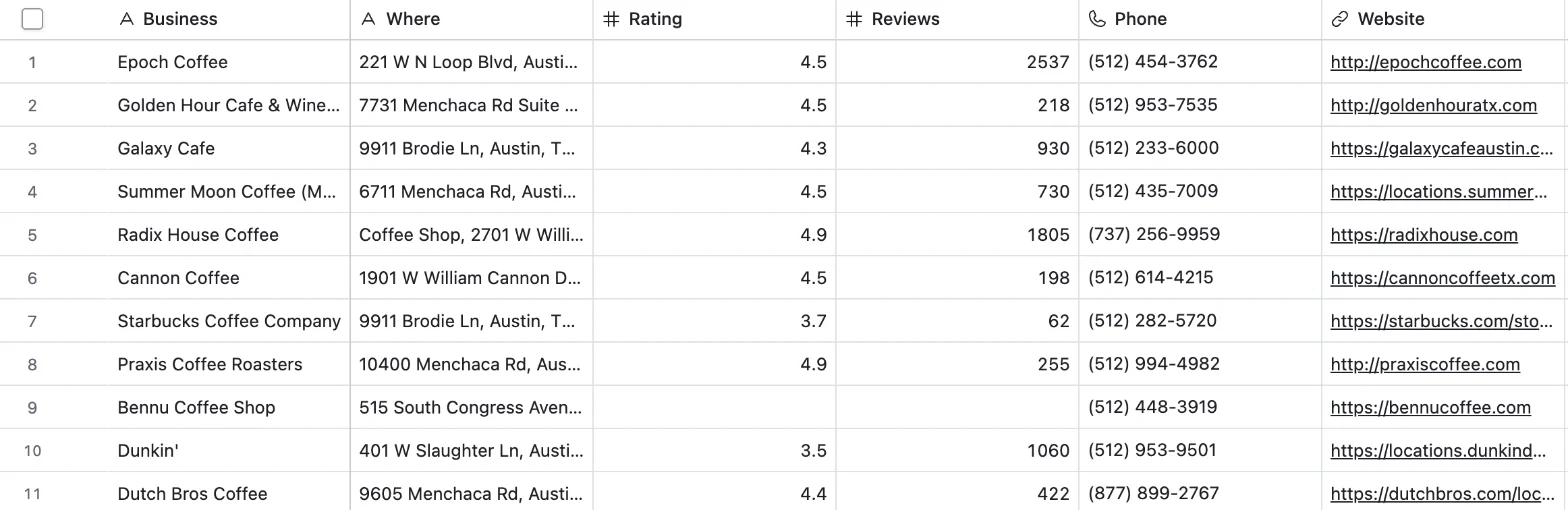
Every record gets three more fields:
- Source: the page the record was read from.
- Read on: the date SpecStream read it.
- SpecStream ID: the result's ID, used to update the record instead of adding it twice.
Add results again
Open Add results you already have to pick an earlier run from your SpecStream workspace and add it to any table. Reading results you already have costs nothing. Records with a matching SpecStream ID are updated in place.
Permissions and data
The extension sends SpecStream only what you type in it, using your API key, to api.specstream.ai. It reads the base only to list your tables and fields and to find records it added before; nothing from your base is sent to SpecStream. Records are written from your browser with your Airtable permissions. See the privacy policy and security.
How SpecStream uses AI
SpecStream uses AI models to read your request and the pages it collects, so results can be wrong. Every record carries the page it came from and when it was read, so you can open the source. The AI services SpecStream uses don't keep what they read and may not train their models on it.
Cost
Sending results to Airtable costs nothing, and the extension is free. Requests are paid from your SpecStream balance, only for the results that match, and a search that finds nothing is free. See pricing and balance, quotes and billing.
Remove
Disconnect Airtable from Connections in SpecStream. In the extension settings, click Remove key. To remove the extension, open its menu in the extensions panel and choose Remove extension. To stop a key everywhere, delete it under Agents & API in your workspace. Records already added stay in your base. The other tools SpecStream works with are in Connect your tools. For help, email [email protected].