Framer
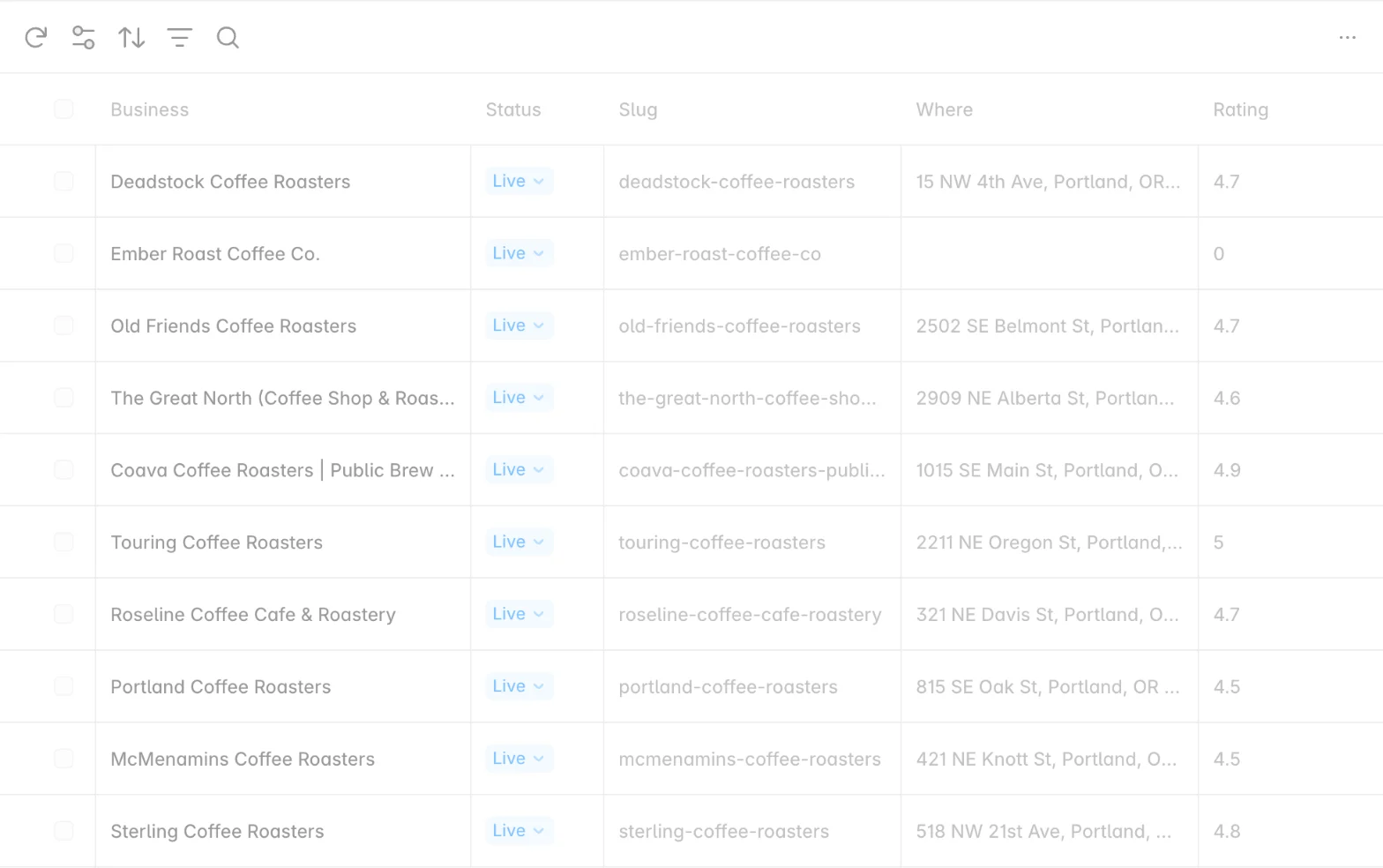
Fill a Framer CMS collection with live web data: companies, local businesses, job posts, filings, products. Ask in plain words, approve the most it can cost, and the results sync into the collection as items, each with the page it was read from.
The plugin is in review at Framer, and this guide is written for the day it opens. Meanwhile the same results are in your SpecStream workspace, ready to export.
Open the plugin
In a Framer project, open the CMS, add a collection and choose SpecStream Coming soon, or open SpecStream from Plugins. SpecStream manages the collection it creates: it sets the fields and keeps the items in step with your results.
Connect SpecStream
Create an API key under Agents & API (opens in a new tab) in your SpecStream workspace, paste it and click Connect. Starting is free: new accounts get $10 of work, no card. The key stays in your browser; collaborators on the project don't see it.
Ask for data
Under What do you want to find?, say what you want and the details to bring back, set how many Results, and click Get the price. For example:
Coffee shops in Austin with their website and Google rating
To use a run you already have, open Use results you already have and pick it. Reading results you already have costs nothing.
Approve the price
The plugin shows how SpecStream read the request and the most it can cost. Set Your maximum (USD) and click Approve up to the price. Nothing runs before you approve, and nothing runs above your maximum. Results take a few minutes; Stop the run ends it, and you pay only for the results it already found.
Choose the fields
Each column of the results is a field. Untick a column to leave it out, rename any field, and choose which column the item slugs come from under Slug from. Two fields are always added: Source, a link to the page each item was read from, and Read on, the date SpecStream read it. Framer allows 30 fields in a collection; when results have more columns, the plugin says which ones it left out.
Sync
Click Sync to add the items. Each item keeps SpecStream's ID for its result, so syncing again updates items instead of duplicating them, and removes items that are no longer in the results. Click Sync on the collection in the CMS to bring the same results in again; it reads results you already have, so it costs nothing. To start a new request for the collection, open the plugin and ask again.
Permissions and data
The plugin works only in the collections it manages. It sends SpecStream only what you type in it, with your API key, to api.specstream.ai, and nothing from your project. The request text and which results the collection holds are saved with the collection so Sync can repeat them; your key is not. See the privacy policy and security.
How SpecStream uses AI
SpecStream uses AI models to read your request and the pages it collects, so results can be wrong. Every item carries the page it came from and when it was read, so you can open the source. The AI services SpecStream uses don't keep what they read and may not train their models on it.
Cost
The plugin is free. Requests are paid from your SpecStream balance, only for the results that match, and a search that finds nothing is free. See pricing and balance, quotes and billing.
Log out
Choose Log out in the plugin's menu or at the top of the plugin. That removes the key from your browser. To stop a key everywhere, delete it under Agents & API in your workspace. Items already synced stay in your collection. The other tools SpecStream works with are in Connect your tools. For help, email [email protected].